WordPress is the most popular CMS platform in the world, used by over 40% of all websites. Despite high quality and stability, problems can occur at any time.
In this article, we will look at the most common WordPress errors and provide practical solutions you can apply immediately. From database connection problems to the white screen of death - we will cover everything necessary for quick site recovery.
1. Error Establishing a Database Connection
This is one of the most frequent and critical errors in WordPress. It appears when WordPress cannot connect to the MySQL database.
Causes for the error:
- Incorrect credentials in wp-config.php file
- Database server is inaccessible or overloaded
- Corrupted database
- Hacker attack
Step-by-step solution:
Step 1: Check wp-config.php file
Open the wp-config.php file in the root directory and check the following lines (usually around line 23):
define('DB_NAME', 'database_name'); // Database name\ndefine('DB_USER', 'database_user'); // Username\ndefine('DB_PASSWORD', 'database_pass'); // Password\ndefine('DB_HOST', 'localhost'); // Host (usually localhost)Check:
- The database name is correct
- The username is correct
- The password is correct (no empty spaces)
- DB_HOST is usually "localhost", but may be different with some hosting companies
Step 2: Check if MySQL server is running
Contact your hosting provider or check cPanel if the MySQL server is active.
Step 3: Repair the database
Add the following line in wp-config.php (before "/* That's all, stop editing! */"):
define('WP_ALLOW_REPAIR', true);Then visit: http://your-site.bg/wp-admin/maint/repair.php
Important: After repair, delete this line from wp-config.php!
2. Briefly Unavailable for Scheduled Maintenance
This message appears every time you update a plugin or WordPress itself. Usually, it disappears automatically after the update is completed.
If the message does not disappear:
WordPress creates a file .maintenance in the root directory during an update. If the process is interrupted, the file remains and blocks the site.
Solution:
- Connect via FTP or File Manager in cPanel
- Find the file
.maintenancein the root directory - Delete it
- Refresh the site - it should work normally
Prevention: After every update, check a few pages to ensure everything works correctly.
3. 500 Internal Server Error
Error 500 is a generic server error that can have many causes. Most often it comes from a corrupted .htaccess file, a problematic plugin, or theme.
Solutions (in this order):
Method 1: Check .htaccess file
- Connect via FTP
- Find the file
.htaccessin the root directory - Rename it to
.htaccess_old - Try to load the site
- If it works, go to Settings → Permalinks in WordPress and save (Save Changes) - this will create a new .htaccess
Method 2: Deactivate all plugins
- Via FTP go to
/wp-content/ - Rename the
pluginsfolder toplugins_old - Try to load the site
- If it works, return the name to
plugins - Log in to WordPress and deactivate/activate plugins one by one
Method 3: Switch the theme
- Via FTP go to
/wp-content/themes/ - Rename the current theme
- WordPress will automatically switch to a default theme
- Check if the site works
Method 4: Increase PHP memory limit
Add to wp-config.php:
define('WP_MEMORY_LIMIT', '256M'); Always make a full backup before applying any changes to the WordPress site. The backup is your last line of defense.
— WordPress Best Practices
4. White Screen of Death (WSOD)
The white screen without any error messages is one of the most frustrating WordPress problems. Causes can be PHP memory limit, problematic plugin, or theme.
Solutions:
Step 1: Activate WP_DEBUG mode
In wp-config.php change:
define('WP_DEBUG', false);to:
define('WP_DEBUG', true);\ndefine('WP_DEBUG_LOG', true);\ndefine('WP_DEBUG_DISPLAY', false);Check the file /wp-content/debug.log for errors.
Step 2: Increase Memory Limit
In wp-config.php:
define('WP_MEMORY_LIMIT', '256M');Step 3: Deactivate plugins
Rename
/wp-content/plugins/toplugins_old. Create a new emptypluginsfolder.Step 4: Switch the theme
Rename the active theme in
/wp-content/themes/.
5. Special cases during migration
Problem with WordFence during migration
The WordFence security plugin may block access during site migration:
- Rename
.htaccessand create a new empty one - Delete the folders
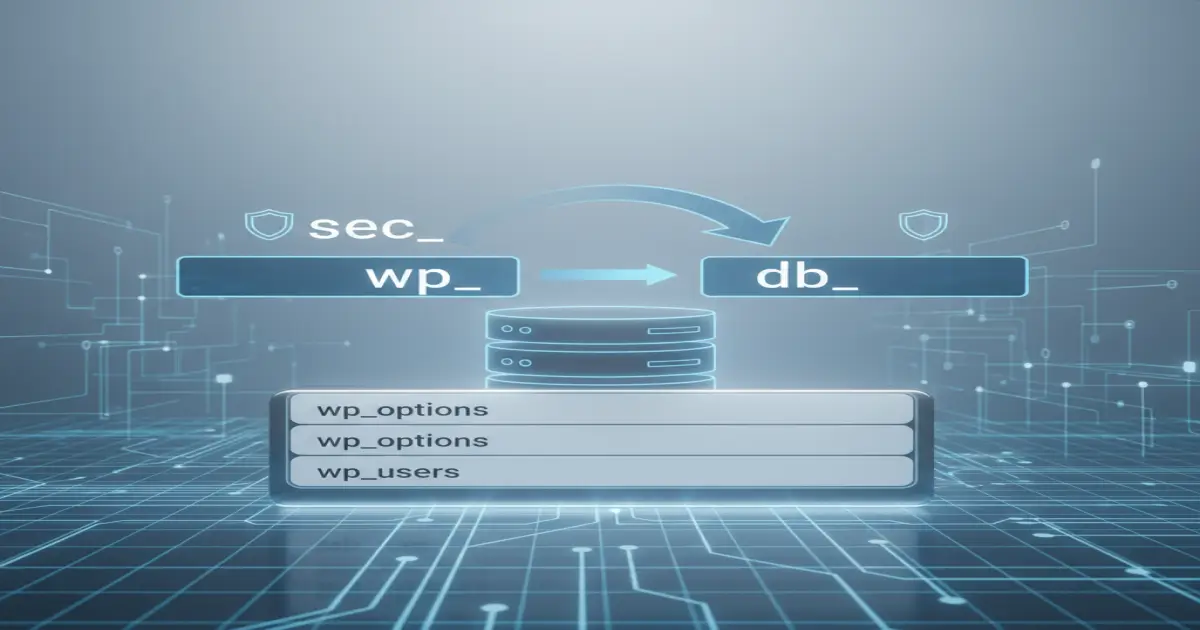
wflogsandwfcache - In the database, delete all tables starting with
wp_wf(examples: wp_wfBlocks, wp_wfConfig, wp_wfHits, etc.) - After successful migration, reinstall WordFence
Problem with Custom Login URL plugins
Plugins like "WPS Hide Login" change the URL address of the login page. During migration:
- Connect via FTP
- Go to
/wp-content/plugins/ - Delete the folder of the custom login plugin
- Log in via the standard
/wp-admin - Reinstall the plugin if necessary
Preventive measures
- Make regular backups (daily or weekly)
- Update WordPress, themes, and plugins regularly
- Use quality hosting services
- Install only verified plugins and themes
- Activate WP_DEBUG on staging environment
- Monitor error log files regularly
- Use a security plugin (WordFence, Sucuri, etc.)
- Perform tests after every update
Conclusion
WordPress problems can be frustrating, but most of them have solutions you can apply yourself. The key is to act methodically and make a backup before every change.
The most important rules:
- Always make a backup before changes
- Activate debug mode to see the errors
- Act methodically - test solutions one by one
- Document what you have done
- Don't panic - most problems are solvable
If the problem is too complex or you don't feel comfortable making changes, the Creative Idea team offers professional WordPress maintenance and troubleshooting services. Contact us for expert help!