The moment a user logs into a site or makes an online order, their personal data becomes visible to the site owner. Without SSL protection, this data can be intercepted by third parties.
HTTPS is a popular method for encrypting data during communication between server and browser. Thanks to this technology, hackers have a much harder task stealing sensitive information. The SSL certificate is a unique identification for every site, confirming the authenticity of the HTTPS connection.
What is SSL?
SSL (Secure Socket Layers) was initially a simple technology introduced by Netscape Communications in 1994. The method quickly became popular, and in 1996 a revision was made, with the newer version 3.0 being introduced for better security.
However, version 3.0 still had vulnerabilities. Therefore, in 1999 the technology was significantly improved by the Internet Engineering Task Force (IETF), leading to the creation of modern TLS (Transport Layer Security) protocols.
Evolution of SSL/TLS:
- 1994: SSL 1.0 (never publicly released)
- 1995: SSL 2.0 (first public version)
- 1996: SSL 3.0 (improved security)
- 1999: TLS 1.0 (successor to SSL)
- 2008: TLS 1.2 (modern standard)
- 2018: TLS 1.3 (newest version)
How does an SSL certificate work?
SSL encrypts data during communication from server to browser. This means the information is not visible in plain text format, but as a string of numbers, letters, and symbols that are unreadable without decryption.
Visual indicators for SSL:
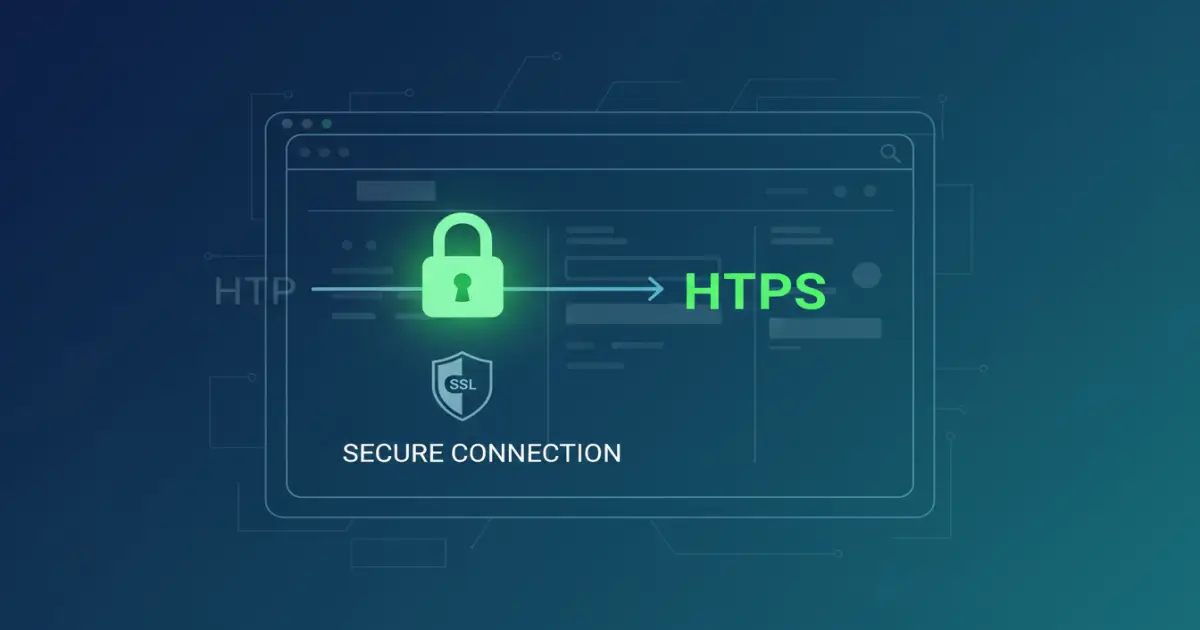
- Green padlock: Appears in the browser's address bar
- HTTPS protocol: Instead of HTTP in the URL address
- Valid certificate: Clicking the padlock shows information about the certificate
- Warnings: Browsers show a warning when the certificate is expired or invalid
Google Chrome marks all HTTP sites as "Not secure", which can seriously harm trust and traffic to your site.
— Google Security Standards
WordPress settings for SSL and HTTPS
The most common scenario is when you open a new site and want to add HTTPS to every page. Here are the steps you need to follow:
Step 1: Make a backup
Before any changes, mandatory create a full backup of the site. This will save you if problems arise during the migration.
Step 2: Install an SSL certificate
Most hosting companies offer a free Let's Encrypt SSL certificate. Activate it from the control panel (cPanel, Plesk, etc.) or contact hosting support.
Step 3: Edit wp-config.php
Open the wp-config.php file and add the following code above the line "/* That's all, stop editing! */":
define('FORCE_SSL_ADMIN', true);This code forces the use of SSL for the WordPress admin panel.
Setting up 301 redirects
To ensure all visitors see the HTTPS version of the site, you need to set up a 301 permanent redirect from HTTP to HTTPS.
Editing the .htaccess file
Open the .htaccess file in the root directory of WordPress and add the following code at the beginning of the file:
RewriteEngine On\nRewriteCond %{SERVER_PORT} 80\nRewriteRule ^(.*)$ https://www.yourdomain.bg/$1 [R=301,L]Important: Replace "yourdomain.bg" with your actual domain and the port (usually 80 for HTTP).
Alternative method (for all protocols):
RewriteEngine On\nRewriteCond %{HTTPS} off\nRewriteRule ^(.*)$ https://%{HTTP_HOST}%{REQUEST_URI} [L,R=301]After adding the code, reload the site and check if the green padlock appears next to the URL address in the browser.
Common problems and solutions
- Mixed Content - check that all resources (CSS, JS, images) are also HTTPS
- Infinity Loop - review .htaccess for conflicting rules
- Broken Links - update internal links from HTTP to HTTPS
- Cache problems - clear WordPress cache and browser cache
- Plugin conflicts - temporarily deactivate cache and security plugins
- Database URLs - use Search & Replace plugin to change URLs
Conclusion
Activating an SSL certificate and migrating to HTTPS is no longer an option, but a necessity for every modern WordPress site. Google gives preference to HTTPS sites in search results, and browsers actively warn users when visiting unprotected HTTP sites.
The installation process is relatively simple but requires attention to detail and a mandatory backup before starting. After successful migration, your site will be more secure, have better SEO ranking, and inspire more trust in visitors.
If you need help activating SSL or other WordPress settings, the Creative Idea team is at your disposal.