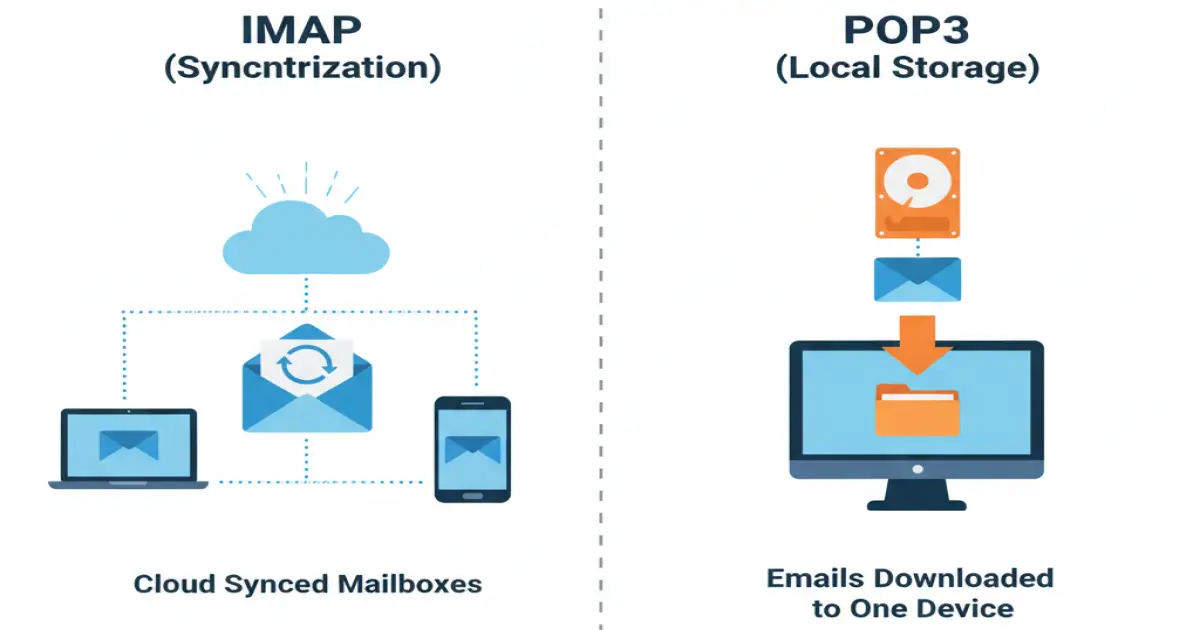
IMAP (Internet Message Access Protocol) and POP3 (Post Office Protocol version 3) are the two main protocols for receiving emails. Each works differently and offers different advantages.
The choice between IMAP and POP3 can significantly affect the way you manage your emails, especially if you use multiple devices or work in a team. Let's look in detail at the characteristics of each protocol.
IMAP (Internet Message Access Protocol)
IMAP is the modern standard for email communication, used by most popular email services like Gmail, Outlook, and Yahoo Mail.
How does IMAP work?
With IMAP, emails are stored on the server and synchronized across all your devices. When you read, delete, or organize emails on one device, the changes are reflected everywhere.
Characteristics of the IMAP protocol
- Stores all messages (received and sent) on the server - accessible from any device
- Folder structure is preserved and visible from all computers and devices
- Server disk space can fill up faster
- Emails load quickly - full content is downloaded only when read
- Message status (read/unread) is saved and synchronized
- You can see used disk space directly from the email client
- Supports server-side filters and automation
- Ideal for working from multiple devices simultaneously
POP3 (Post Office Protocol)
POP3 is the older protocol, which downloads emails from the server to the local device. Traditionally, after downloading, messages are deleted from the server.
How does POP3 work?
With POP3, the email client connects to the server, downloads new emails, and (by default) deletes them from the server. Emails are stored locally on the device.
Characteristics of the POP3 protocol
- Received emails are seen only on the device they were downloaded to
- Sent emails are NOT synchronized with other devices
- Folder structure is visible only on the current device
- Messages are deleted from the server after download (optionally can be kept)
- Emails are downloaded completely immediately
- Status (read/unread) is not synchronized between devices
- Depending on settings, emails may be deleted locally but remain on the server
- You can only see disk space from webmail
- Emails moved to local folders are not accessible from other devices
IMAP is suitable for the modern way of working with multiple devices, while POP3 is better for a single device and local storage.
— Email Best Practices
When to use IMAP?
- Multiple devices: You work from a phone, tablet, laptop, and desktop computer
- Teamwork: You share an email account with colleagues
- Access from anywhere: You want to see the same emails from any place
- Cloud storage: You prefer emails to be on the server
- Server filters: You want automatic email organization
- Webmail: You often use the webmail interface
When to use POP3?
- One device: You work only from one computer
- Limited server space: You have a small email quota
- Offline access: You want to read emails without internet
- Local control: You prefer local storage and backup
- Security: You want emails not to remain on the server
- Slow internet connection: You prefer to download everything at once
Settings and recommendations
IMAP settings
Typical IMAP ports:
- IMAP: port 143 (unencrypted)
- IMAPS (SSL/TLS): port 993 (recommended)
POP3 settings
Typical POP3 ports:
- POP3: port 110 (unencrypted)
- POP3S (SSL/TLS): port 995 (recommended)
Important recommendations:
- Always use SSL/TLS encryption
- For POP3, set an option to keep emails on the server (at least for 7-30 days)
- Regularly backup local emails when using POP3
- For IMAP, monitor used server disk space
- Archive old emails periodically
Conclusion
Nowadays, IMAP is the preferred choice for most users, thanks to synchronization between devices and cloud storage. It offers flexibility and convenience for the modern workflow.
POP3 still has its place, especially for users who:
- Work from one device
- Have limited server disk space
- Prefer local control over emails
- Work offline often
Regardless of the choice, make sure you use SSL/TLS encryption and make regular backups of your important emails. If you need help setting up email or migrating between protocols, the Creative Idea team is at your disposal.